AiTiktok Studio · Free Turbo engine
Fast AI Image Generator
Turbo is AiTiktok Studio’s free fast image engine for signed-in accounts. It can create a new image, edit a target picture, or create a transparent image. Results are usually ready in about 10 seconds, though queue conditions and the task itself can affect timing. No card is required for free image generation.
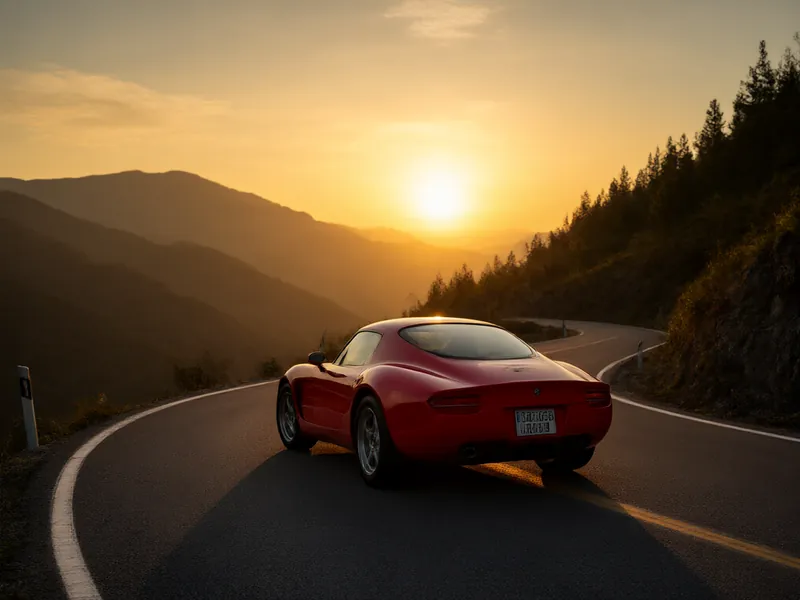
Made with Turbo
What makes Turbo useful
When you want to explore an idea quickly, a shorter wait makes it practical to test several prompt directions, compare composition, or make a small correction before continuing. Turbo is configured for speed and uses a fixed eight-step generation process. It is a distinct choice from the other image quality settings shown in Studio. Choose it for rapid drafts and everyday image tasks; select another available engine when you prefer a different quality or model behavior. The Studio form displays the engines available at the time you create, so the list may depend on current service capability.
Turbo is not an extra charge or a separate checkout. Signed-in customers can use free image generation without a card. This free image workflow is separate from video generation and its billing options. Check Studio for the latest availability and settings rather than assuming every model choice or format is always enabled.
Three ways to use Turbo
Create a new image
In Create mode, describe the subject, surroundings, composition, lighting, colors, and visual style. This is the right place to begin when you do not need to modify an uploaded target. You may use a reference as inspiration where the form supports it, but a reference is guidance and is not itself the image being edited.
Edit an existing image
In Edit mode, select one target image and tell Studio what should change. A direct instruction such as “make the jacket red” is easier to evaluate than a long list of unrelated changes. The target is the picture you want to modify; optional reference images, where supported, are separate inspiration inputs.
Create a transparent image
Transparent mode can generate an image with a transparent background, useful for a subject intended to sit on another design. Studio also provides a separate Remove Background choice for turning an existing image background transparent. Choose the workflow that matches your starting point: generate new content, or process an uploaded picture.
How to generate an image with Turbo
- Sign in. Your image requests and results appear in your account’s Studio history.
- Select an image mode. Choose Create, Edit, or Transparent. For a new image, start with Create; for a picture you already have, choose Edit or Remove Background as appropriate.
- Choose Turbo. Select the Turbo option if it is listed as an available image engine. Its generation steps are fixed by the service.
- Write one focused prompt. Name the subject first, then add useful details about placement, lighting, color, and style. For edits, state the change and what should remain.
- Generate and review. Wait for the result, compare it with your intent, then download or make a targeted revision.
Prompt tips for fast iteration
Start with the subject and desired result, not a paragraph of background. Add only visual properties that affect the output: a centered product on a pale surface, a portrait with soft window light, or a simple flat illustration in two colors. If a result misses, identify one specific difference and revise that phrase. Changing many details at once makes it harder to understand why the next result changed. For Edit, be explicit about the target area and preservation instructions—for example, ask to change a wall color while keeping the person and framing unchanged. For a transparent creation, say what subject you need and avoid requesting an opaque background that conflicts with transparency.
Speed supports exploration, but it does not guarantee that every fine detail will match a prompt. Examine text, hands, small edges, and object geometry before using an image in a finished design. If exact typography or pixel-level retouching is essential, review the result in a dedicated editor after download.
Who can use a fast image workflow?
Creators can draft social artwork, test visual directions, make concept illustrations, or prepare a cutout. Teams can explore product-scene ideas or internal mockups. Upload permitted material and review results before publishing. Turbo does not guarantee accuracy.
Fast AI image generator FAQs
Is Turbo free to use?
Turbo is a free image engine for signed-in accounts, and a card is not required for free image generation.
How long does an image take?
Images are usually ready in about 10 seconds. This is an approximate typical time, not a guaranteed service level; load and queue conditions can change it.
Can I edit an uploaded picture?
Yes. Turbo supports Edit mode, where you choose one target image and describe the requested change.
Can I make transparent artwork?
Yes. Turbo supports Transparent mode for a new transparent image. Remove Background is another mode for making an existing image’s background transparent.
Do I need a payment method?
No card is required for free image creation. Video generation is a separate Studio workflow with its own terms.
Related image tools
Explore the AI image generator, use the AI image editor to change a picture, or open the background remover for transparent cutouts. For a video character replacement workflow, read about AI Character Swap.